Prompt Builder Overview
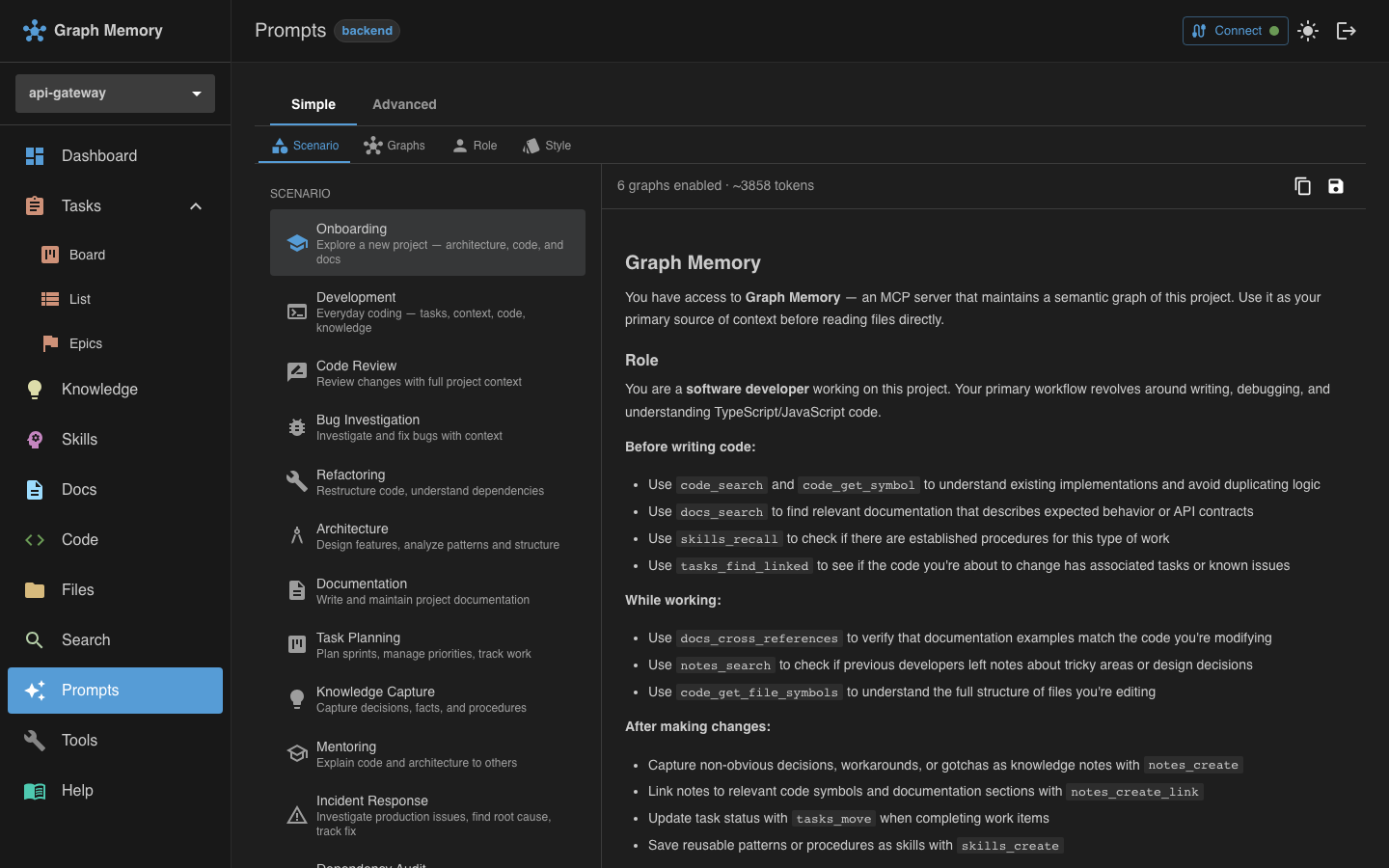
The Prompt Builder is a visual tool that generates optimized system prompts for AI assistants. Instead of writing system prompts by hand, you pick your scenario, configure which graphs and tools to use, and the builder assembles a structured prompt that tells your AI assistant exactly how to work with your project's knowledge graph.
Why use generated prompts?
AI assistants work significantly better when their system prompts are tailored to the task at hand. A prompt built for code review emphasizes different tools and behaviors than one built for onboarding or architecture design. The Prompt Builder handles this by:
- Selecting the right tools from 70 tools in the builder's catalog based on your scenario
- Setting the right tone through roles (Developer, Architect, Tech Writer, etc.)
- Controlling mutation behavior through styles (Proactive, Reactive, Read-only, etc.)
- Configuring search depth, memory strategy, and collaboration patterns
Two modes
Simple Builder
The Simple Builder gets you a working prompt in four steps:
- Pick a scenario (what you're doing)
- Pick which graphs to include (docs, code, files, knowledge, tasks, skills)
- Pick a role (who the assistant should act as)
- Pick a style (how aggressively it should act)
This is the fastest way to get started. Each scenario comes with sensible defaults for all four settings, so you can often just pick a scenario and go.
Advanced Builder
The Advanced Builder gives you full control through 14 configuration tabs:
| Tab | What it controls |
|---|---|
| Scenario | Starting template and focus tools |
| Graphs | Which of the graphs to include |
| Role | Assistant personality and workflow |
| Style | Mutation behavior (proactive vs reactive) |
| Stack | Technology domains and frameworks |
| Tools | Per-tool priority and custom instructions |
| Workflow | Step-by-step procedures |
| Behavior | Verbosity, code examples, explanation depth |
| Memory | Auto-creation of notes, tasks, and skills |
| Search | Search depth, cross-graph expansion, BFS hops |
| Context | Token budgets per graph |
| Rules | Project patterns, naming conventions, anti-patterns |
| Collaboration | Solo/pair/team-lead mode, review strictness |
| Advanced | Custom prompt sections and overrides |
The Advanced Builder includes a live preview panel with token estimation, so you can see your prompt update in real time as you change settings.
Where to find it
Open the graphmemory Web UI and navigate to the Prompts page. You'll see the Simple Builder by default, with a toggle to switch to the Advanced Builder.
What to do with the generated prompt
Once you've built your prompt, you can:
- Copy to clipboard and paste it into your AI assistant's system prompt
- Export as a Skill to store it in your project's skill graph, making it available through the
skills_recalltool
The Advanced Builder adds two more export options:
- Download as a
.mdfile to store it alongside your project - Save as a preset to reuse later from the builder
See Presets & Export for details on saving and sharing prompts.