Advanced Builder
The Advanced Builder gives you granular control over every aspect of the generated system prompt. It starts with the same core settings as the Simple Builder (scenario, graphs, role, style) and adds 10 additional configuration tabs.
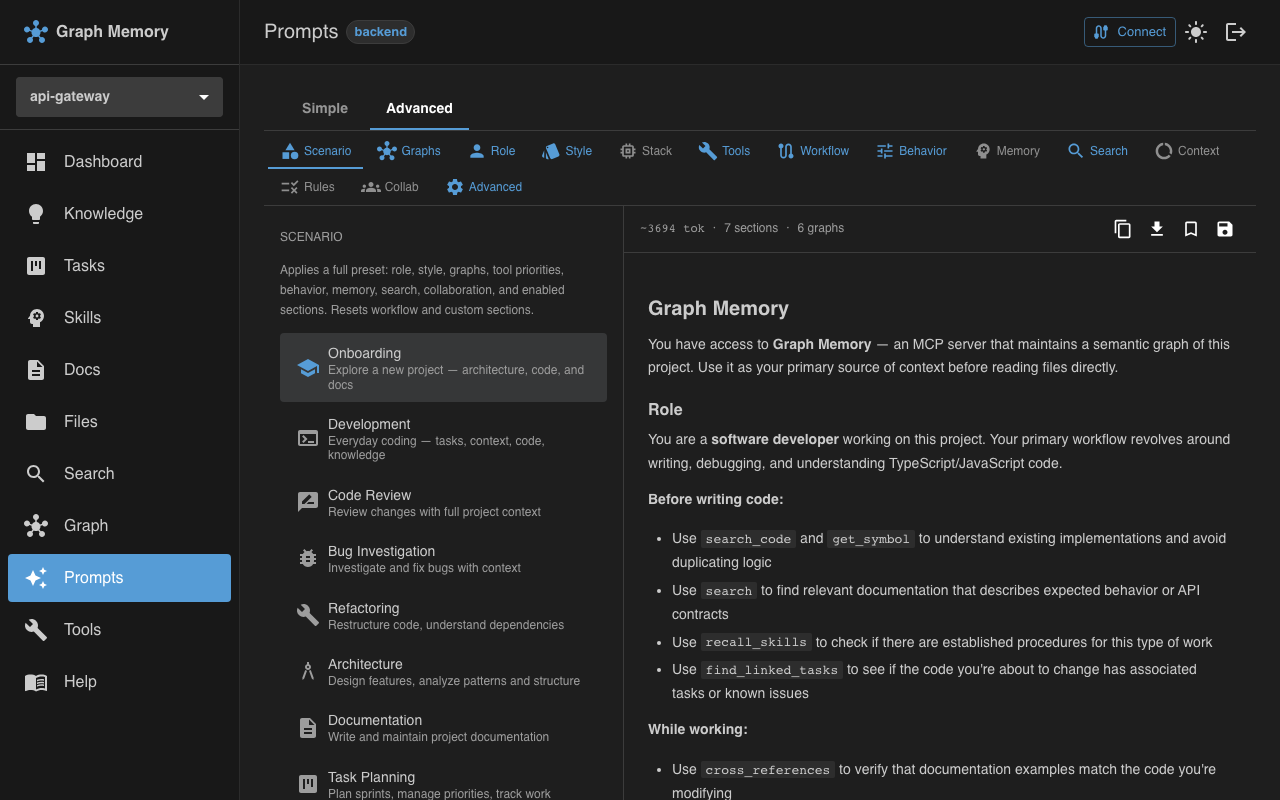
Configuration tabs
Scenario
Select a starting scenario template. This pre-fills defaults across all other tabs, giving you a head start that you can then customize. Changing the scenario resets other tabs to that scenario's defaults.
Graphs
Toggle which of the graphs (Documentation, Code, Files, Knowledge, Tasks, Skills) are included in the prompt. Each enabled graph adds its tools and usage instructions.
Role
Choose the assistant's personality and workflow. Same as the Simple Builder, but in the Advanced Builder you can see how it interacts with other tabs.
Style
Set the mutation behavior (Proactive, Reactive, Read-only, Balanced, Aggressive, Guided). This controls how the assistant decides when to create notes, tasks, and skills.
Stack
Configure technology domains relevant to your project. The Stack tab covers 9 domains, each with multiple subcategories. Enable the domains that apply to your project, then select specific technologies within each. Selected stack items are included in the generated prompt so the assistant understands your project's tech context.
| Domain | Subcategories |
|---|---|
| Languages & Runtimes | Languages, Runtimes, Package Managers |
| Web Frontend | Frameworks, State Management, Styling, UI Libraries, Build Tools |
| Web Backend | JS/TS, Python, Go, Rust, Java/Kotlin, PHP, Ruby, C#/.NET, Elixir, API Style |
| Mobile & Desktop | iOS, Android, Cross-platform, Desktop |
| Data & Storage | Relational, Document, Key-Value/Cache, Search, Graph, Time-series, Vector, ORM/Query Builder, Message Queue |
| DevOps & Infrastructure | CI/CD, Containers, Orchestration, IaC, Cloud, Monitoring, Secrets |
| Testing & Quality | Unit/Integration, E2E, API Testing, Linting/Formatting, Code Quality, Load Testing, Paradigms |
| AI & ML | Frameworks, LLM/GenAI, Data Processing, MLOps, Notebooks, Embeddings/Vector |
| Project & Process | Methodology, Tracker, Documentation, Communication, Design, Version Control |
Tools
Fine-tune individual tool priorities. For each of the 70 tools in the builder's catalog (all except get_context, which runs automatically), you can set a priority level:
| Priority | Meaning |
|---|---|
| Always | Use this tool proactively in every relevant context |
| Prefer | Use when relevant, favor over alternatives |
| Available | Use when explicitly needed |
| Avoid | Only use if specifically requested |
| Disabled | Never use this tool |
You can also add custom instructions per tool and define tool chains — ordered sequences of tools that should be used together for specific workflows.
Workflow
Define step-by-step procedures as workflow steps. Each step has a description, a list of tools to use, and an optional condition. Workflows appear in the prompt as structured procedures the assistant should follow.
Behavior
Control response characteristics:
- Verbosity: concise, normal, detailed, or exhaustive
- Code examples: always include, only when helpful, or never
- Explanation depth: brief, standard, or deep-dive
- Response language: target language for responses
- Format preference: bullets, tables, prose, or mixed
Memory
Configure how the assistant manages the knowledge graph:
- Auto-create notes: always, ask first, or never
- Note detail level: 1-5 scale for how detailed captured notes should be
- Relation strategy: aggressive (link everything), conservative (important connections only), or manual (only when asked)
- Skill capture threshold: 1-5 scale for when to save procedures as skills
- Task auto-create: always, ask first, or never
Search
Tune search behavior:
- Default depth: shallow, medium, or deep
- Cross-graph expansion: always expand to related graphs, only when needed, or never
- BFS hops: how many relationship hops to follow (1-5)
- Result count: number of results to return (5-50)
- Keyword weight: balance between keyword matching and semantic search (0-100)
Context
Set token budgets to control how much context from each graph is included:
- Max code tokens: limit for code graph content
- Max doc tokens: limit for documentation content
- Max knowledge tokens: limit for knowledge graph content
- Priority order: which graphs get priority when budgets are tight
- Deduplication: strict, fuzzy, or none
Rules
Define project-specific rules that appear in the prompt:
- Focus patterns: file or code patterns to prioritize
- Ignore patterns: patterns to skip
- Naming conventions: project naming standards
- Code style rules: formatting and style requirements
- Architecture patterns: approved design patterns
- Anti-patterns: patterns to flag and avoid
Collaboration
Configure team interaction settings:
- Mode: solo (individual work), pair (two people collaborating), or team-lead (managing others)
- Review strictness: lenient, standard, strict, or pedantic
- Commit style: conventional commits, descriptive, or minimal
- PR format: detailed, standard, or minimal
Advanced
Add custom prompt sections with free-form markdown. Use this for anything not covered by the other tabs — project-specific instructions, special constraints, or custom workflows.
Section Toggle
Each configuration tab (except Scenario and Advanced) includes a Section Toggle at the top. This toggle controls whether that tab's content is included in the generated prompt.
- Enabled (default for core tabs): the section's content appears in the generated prompt. The tab label in the tab bar is highlighted.
- Disabled: the section is excluded from the prompt entirely. The tab label appears dimmed, and the toggle shows "excluded from prompt."
This lets you configure a tab's settings without including them in the output. For example, you might configure Collaboration settings but disable the section until you're ready to use them in a team context.
Scenarios can pre-enable specific sections through their advancedDefaults. For instance, the Onboarding scenario enables the Behavior and Search sections, while Code Review enables the Collaboration section.
Live preview with token estimation
The preview panel shows the assembled prompt in real time and displays an estimated token count. This helps you stay within your AI assistant's context window limits and identify sections that might be too large.
Export options
The Advanced Builder supports all export options:
- Copy to clipboard: paste directly into your AI assistant
- Download as
.md: save as a markdown file - Save as preset: store in browser for quick access later
- Export as Skill: create a skill in your project's graph
See Presets & Export for more on saving and sharing.