Simple Builder
The Simple Builder is the fastest way to generate a system prompt. It walks you through four settings, each with sensible defaults, and shows a live preview of the assembled prompt.
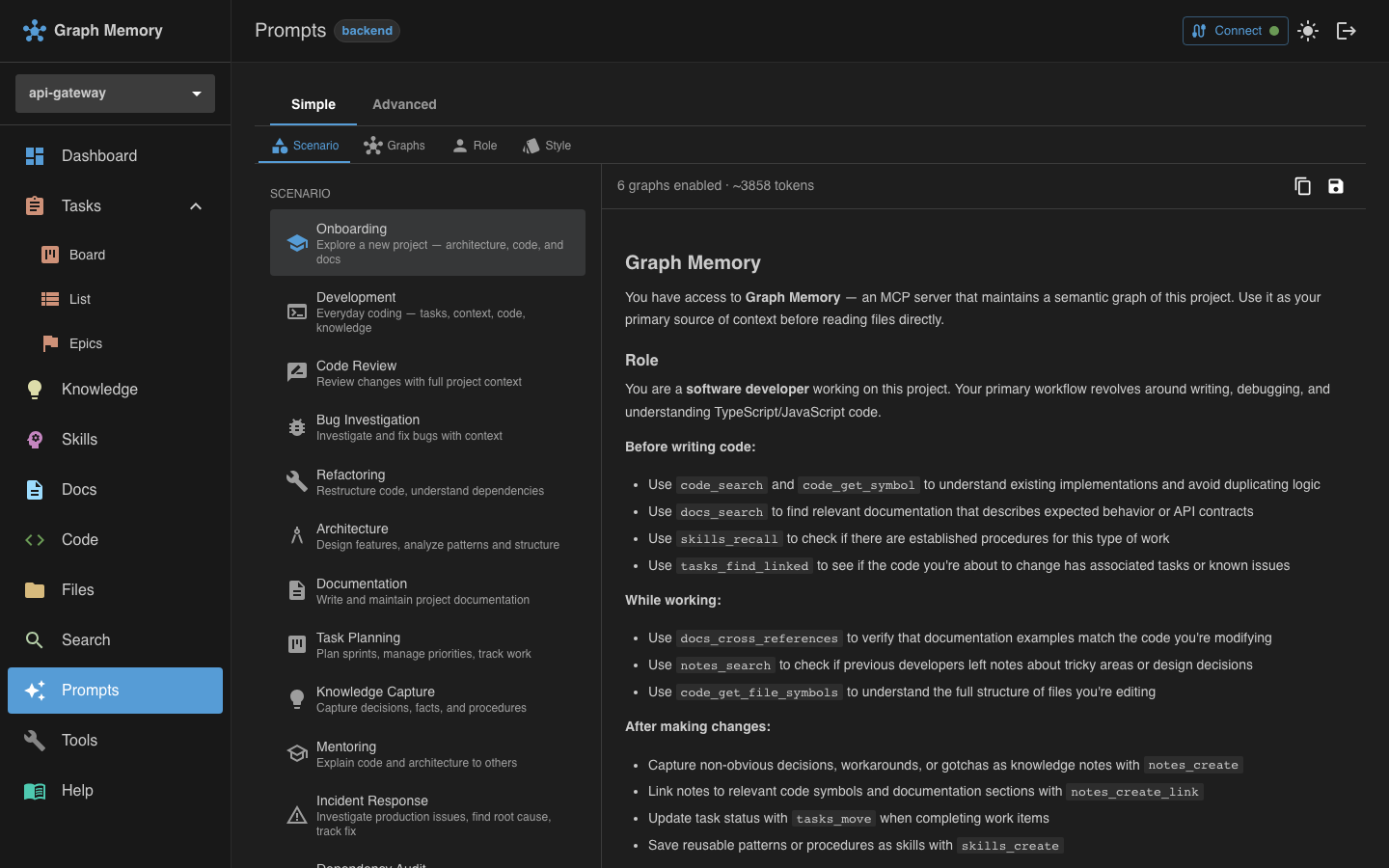
Step 1: Pick a scenario
Scenarios are starting templates optimized for common workflows. When you select a scenario, it automatically sets recommended defaults for graphs, role, style, and focus tools.
For example, selecting Code Review enables the Code, Docs, Files, and Tasks graphs, sets the role to Reviewer, and chooses the Reactive style. You can override any of these defaults in the following steps.
See Scenarios for the full list of 14 available scenarios.
Step 2: Select graphs
Choose which of the graphs your prompt should reference:
| Graph | What it contains |
|---|---|
| Documentation | Indexed markdown files with section-level search |
| Code | TypeScript/JavaScript symbols (functions, classes, types) |
| Files | Complete project file tree with metadata |
| Knowledge | Notes, facts, decisions, and their relations |
| Tasks | Kanban tasks with priorities, statuses, and links |
| Skills | Reusable procedures, recipes, and troubleshooting guides |
The scenario pre-selects the most relevant graphs, but you can add or remove any of them. Each enabled graph adds its tool descriptions and usage instructions to the prompt.
Step 3: Choose a role
Roles define the assistant's personality and workflow focus. Each role includes specific guidance on which tools to use and when.
For example, the Developer role instructs the assistant to search code before writing, check for linked tasks, and capture decisions as notes after making changes.
See Roles for details on all 8 roles.
Step 4: Set a style
Styles control how aggressively the assistant interacts with the knowledge graph — specifically whether it creates, updates, and links entries on its own or waits for your approval.
- Proactive: acts without asking, creates notes and tasks when valuable
- Reactive: searches freely, but asks before creating anything
- Read-only: never modifies the graph
- Balanced: searches autonomously, asks before mutations
- Aggressive: captures everything, links everything
- Guided: explains every step as it works
See Styles for full descriptions.
Live preview
As you change settings, the right-side panel updates in real time to show the assembled prompt. This lets you see exactly what the AI assistant will receive.
Export options
The Simple Builder offers two export options:
- Copy to clipboard: Click the copy button to copy the full prompt as plain text. Paste it into your AI assistant's system prompt configuration.
- Export as Skill: Click the save button to store the prompt as a skill in your project's Skill Graph. This makes it searchable through
skills_recalland available to other team members.
For additional export options (Download as .md and Save as preset), switch to the Advanced Builder.
When to use Simple vs Advanced
Use the Simple Builder when:
- You're getting started with prompt generation
- A built-in scenario matches your workflow
- You want a prompt quickly without fine-tuning every detail
Switch to the Advanced Builder when:
- You need per-tool priority configuration
- You want to customize search depth, memory strategy, or context budgets
- You're setting up collaboration rules for team workflows
- You want to add custom prompt sections or project-specific rules