Dashboard & Navigation
Dashboard
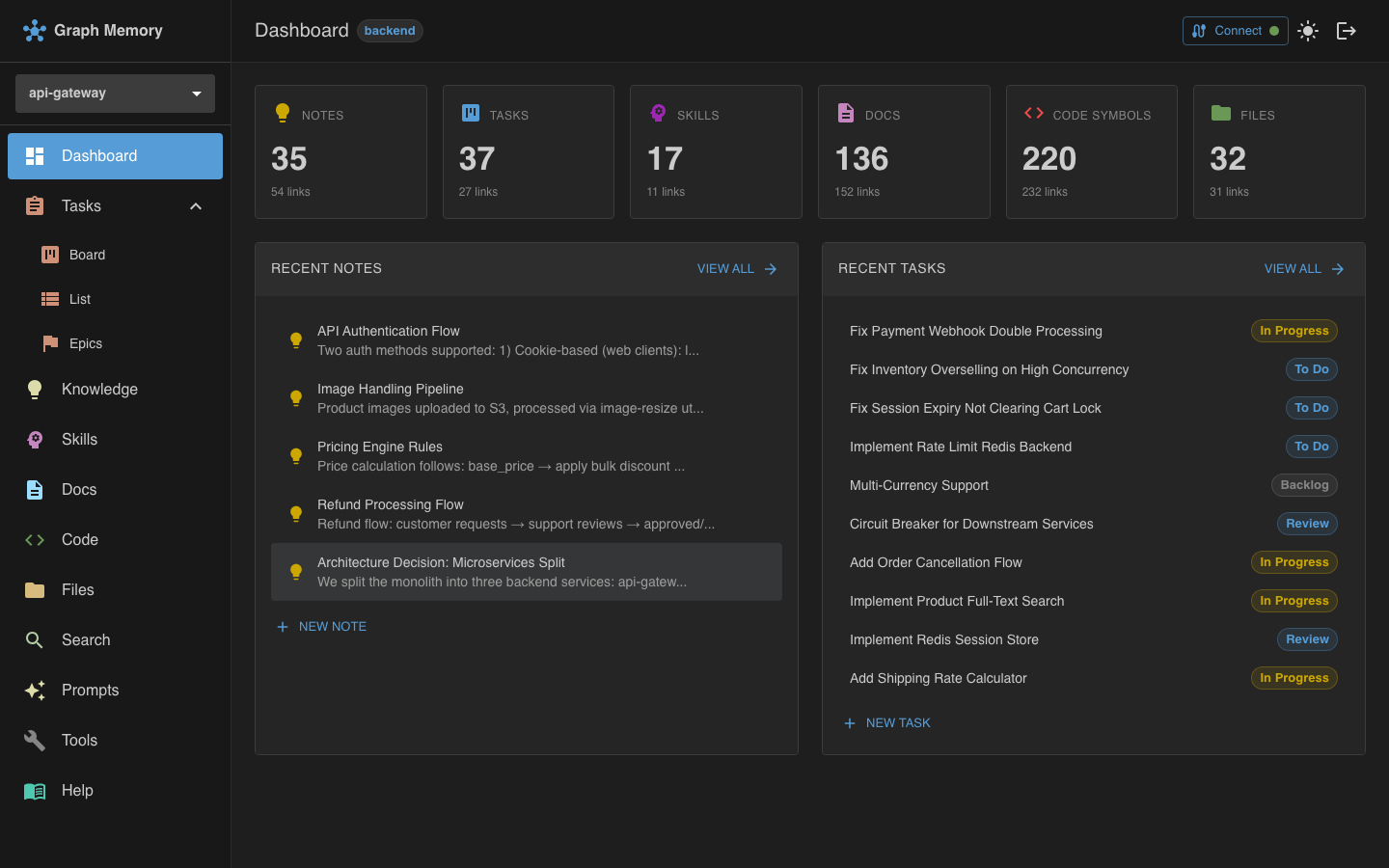
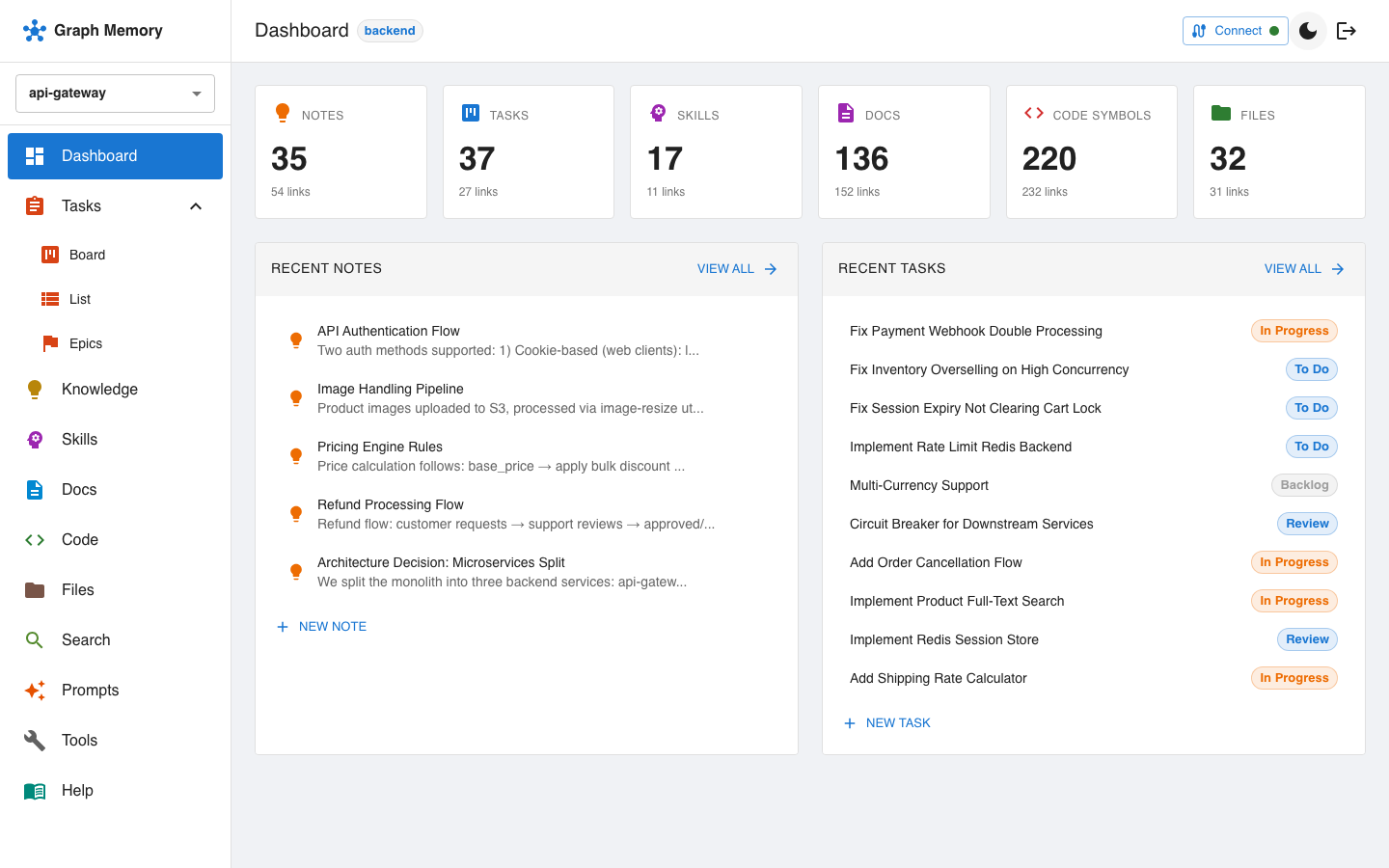
The dashboard is the landing page after login. It gives you an at-a-glance view of the current project.
Stat cards
Six stat cards show the count of items in each graph:
| Card | What it counts |
|---|---|
| Notes | Knowledge graph entries |
| Tasks | Task graph entries |
| Skills | Skill graph entries |
| Docs | Indexed documentation chunks |
| Code | Indexed code symbols (functions, classes, interfaces) |
| Files | Indexed project files |
Counts update in real time as the indexer processes files or you create new items.
Recent activity
Below the stat cards, a feed shows the most recently created and updated notes and tasks. Each entry links to its detail view.
Sidebar
The sidebar is always visible on desktop and accessible via the hamburger menu on mobile.
Project selector
At the top of the sidebar, a dropdown lets you switch between projects. Projects are grouped by workspace, so if your graph-memory.yaml defines multiple workspaces, you see them organized hierarchically:
Workspace A
  ├── project-one
  └── project-two
Workspace B
  └── project-three
Selecting a project reloads all pages with that project's data.
Navigation items
Each page has an icon and label in the sidebar. The active page is highlighted with a primary-color background. Pages for disabled graphs are automatically hidden.
Some navigation items are expandable groups. For example, Tasks expands to show sub-items: Board, List, and Epics.
Header bar (AppBar)
The header bar sits above the main content area and contains the page title, theme toggle, Connect button, and logout button.
Theme toggle
A toggle in the header bar switches between light and dark mode. Your preference persists across sessions in the browser's local storage.
Logout
When authentication is enabled, a logout button appears in the header bar. Clicking it clears your JWT cookies and returns you to the login page.
Connection status
A small colored dot in the header shows the WebSocket connection state:
- Green — connected, real-time updates active
- Yellow (pulsing) — connecting or reconnecting
- Red — disconnected
Hover over the dot for a tooltip with the current status.
Connect button
The header bar includes a Connect button that opens a dialog showing how to configure your MCP client (Claude Desktop, Cursor, Windsurf, or others) to connect to this Graph Memory server.
The dialog displays:
- The MCP endpoint URL for the current project
- A ready-to-paste configuration snippet
- Your API key (if authenticated), pre-filled into the snippet
This makes it easy to set up your AI assistant without manually looking up URLs or keys.
Login page
When users are configured in graph-memory.yaml, the UI shows a login page before granting access. The login page accepts an email address and password. On successful authentication, the server sets secure JWT cookies and the app loads.
If no users are configured, the UI skips authentication entirely and loads directly -- maintaining backward compatibility for local development setups.
See Authentication for details on setting up users and configuring security.