Knowledge, Tasks & Skills
These three pages manage the persistent, user-created data in Graph Memory. Unlike docs, code, and files (which are indexed automatically from your project), knowledge, tasks, and skills are created and maintained by you or your AI assistant.
Knowledge
The Knowledge page is your persistent note-taking space with semantic search and cross-graph linking.
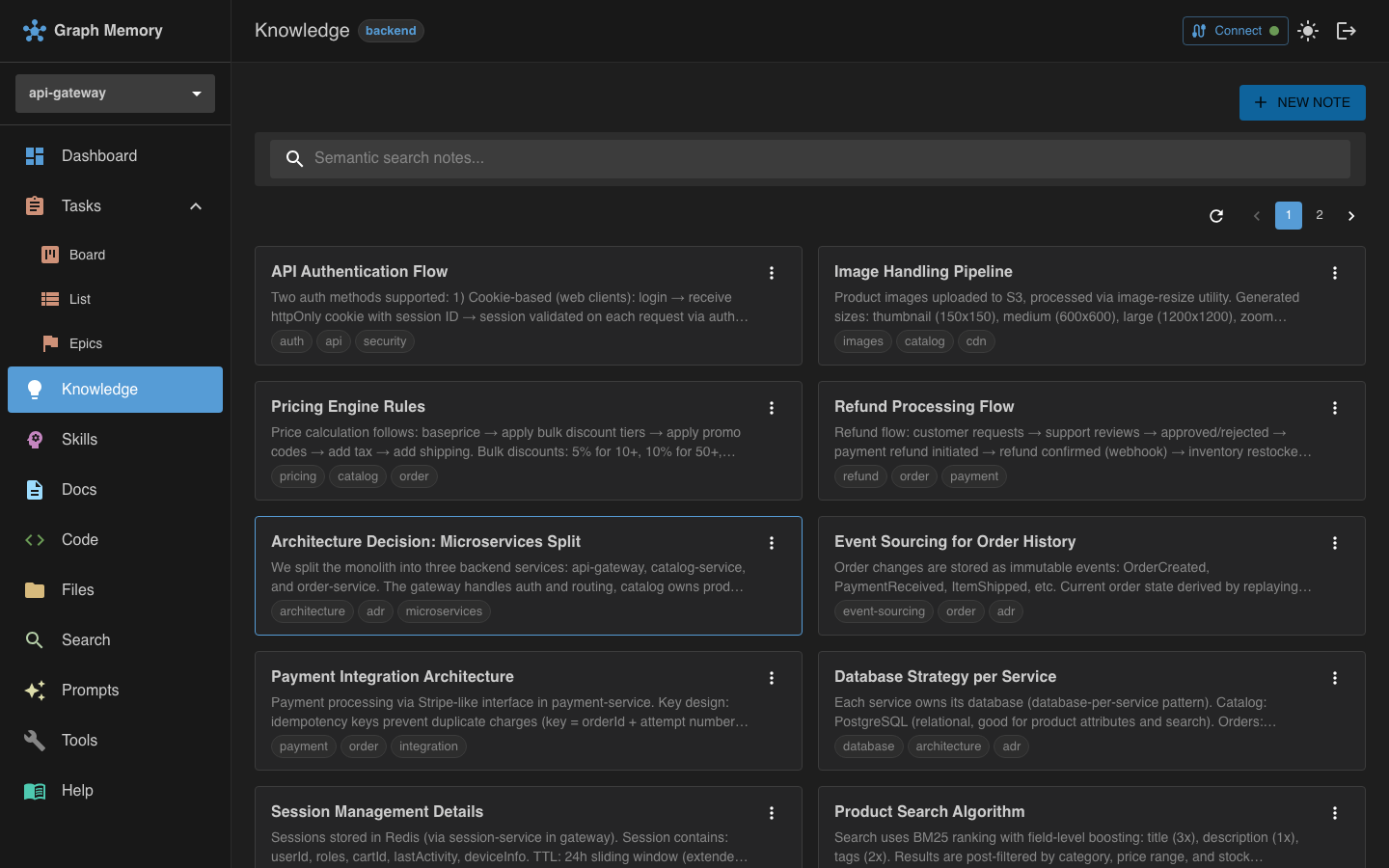
Note list
The main view shows all notes with search and tag filtering. Type in the search box to find notes by content using hybrid semantic search (BM25 keyword matching combined with vector similarity).
Creating and editing notes
Click the create button to open a new note form. The editor supports full Markdown with live preview. Each note can have:
- A title and body (markdown)
- Tags for organization
- Metadata fields
Relations manager
Notes can be linked to other notes and to items in any other graph. The relations dialog lets you:
- Add note-to-note relations (e.g., "related to", "depends on", "contradicts")
- Add cross-graph relations linking a note to a task, skill, doc section, code symbol, or file
- View and remove existing relations
Cross-graph links appear as clickable references that navigate to the linked item.
Attachments
Each note supports file attachments. You can:
- Upload files from your computer
- View the list of attached files
- Download attachments
- Delete attachments you no longer need
Attachment filenames are validated to prevent path traversal and other security issues.
Tasks
The Tasks page provides a full kanban board for project task management.
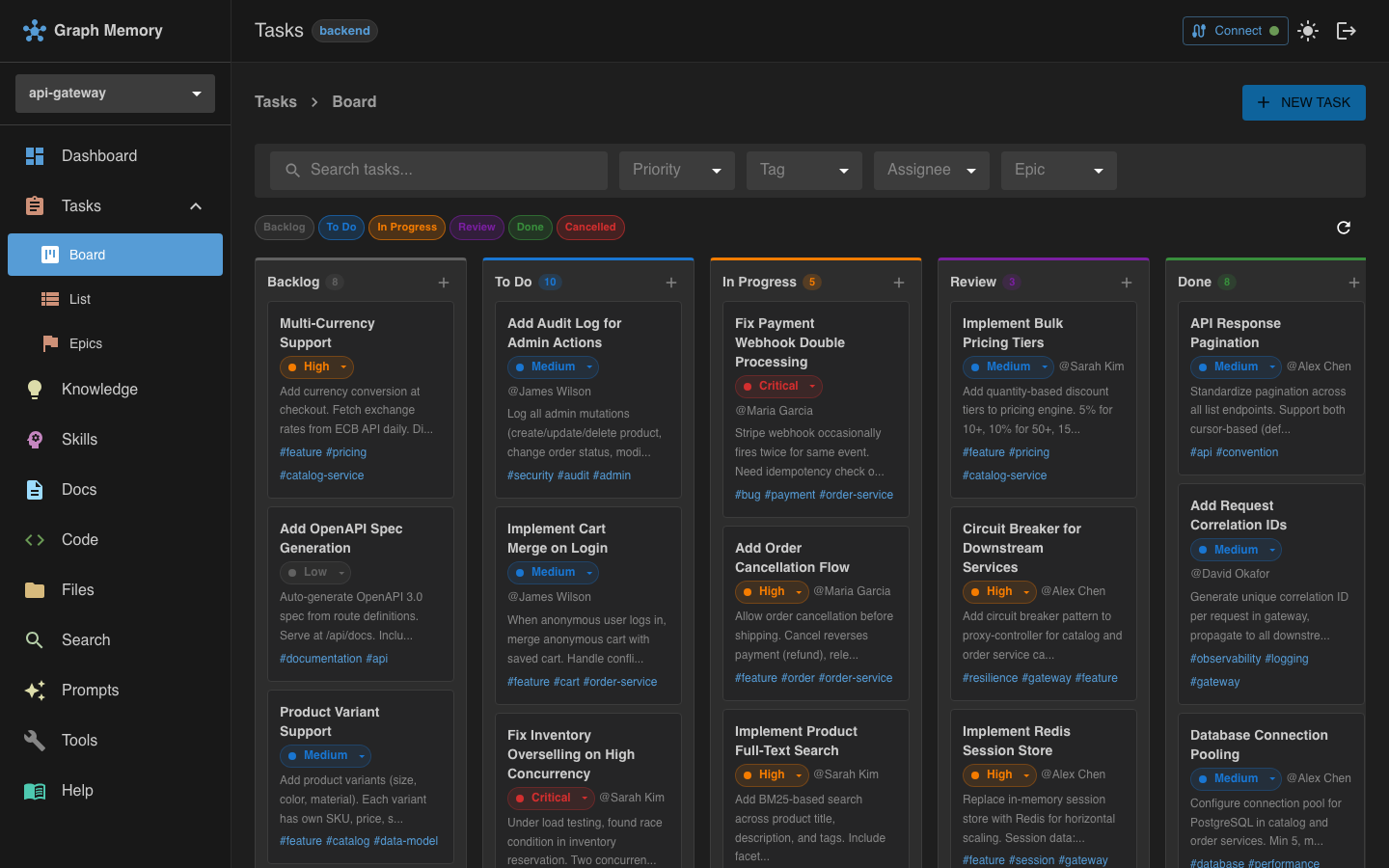
Kanban board
Tasks are displayed as cards organized into status columns. The available columns correspond to task statuses (e.g., backlog, todo, in_progress, review, done).
Column configuration: you can show or hide specific status columns. Your column preferences are saved in the browser's local storage.
Drag and drop
Move tasks between columns by dragging them. Drop zones highlight as you drag, showing valid targets. When you drop a task into a new column, its status updates immediately.
Inline creation
Create tasks directly within a column by clicking the add button at the top of any column. The new task is created with the status matching that column.
Task cards
Each card displays:
- Title of the task
- Priority badge -- color-coded (e.g., red for critical, orange for high)
- Due date badge -- turns red when the task is overdue
- Estimate badge -- time or story point estimate
- Assignee -- resolved from the team member name
- Tag chips -- categorization labels
Quick actions
Hover over a task card to reveal quick-action buttons for moving the task to the next or previous status column without dragging.
Filters
The filter bar lets you narrow the board by:
- Search text -- matches against task title and content
- Priority -- show only tasks of a specific priority level
- Tags -- filter by one or more tags
- Assignee -- show only tasks assigned to a specific person
- Epic -- show only tasks linked to a specific epic
Active filters appear as removable chips below the filter controls. Click the × on a chip to remove that filter, or Clear all to reset all filters at once.
Task ordering
Within each status column, tasks are sorted by priority and due date by default. You can override this with manual ordering by dragging tasks within a column to set a custom display order. Manual order is persisted and takes precedence over the default sort. Use the tasks_reorder MCP tool for programmatic reordering.
List view
In addition to the kanban board, a list view presents all tasks in a sortable table with collapsible groups.
Grouping
The list view supports grouping tasks by different fields via the Group by dropdown:
- Status (default) — groups by task status (Backlog, To Do, In Progress, etc.)
- Priority — groups by priority level (Critical, High, Medium, Low)
- Assignee — groups by team member, with an "Unassigned" group for tasks without an assignee
- Tag — groups by tag (tasks with multiple tags appear in multiple groups)
- Epic — groups by parent epic
- None — flat table without group headers
When grouping by Status, Priority, or Assignee, you can drag tasks between groups to change the field value. Grouping preference is saved in local storage.
Task detail view
Click a task card to open its full detail view, which includes:
- All task fields (status, priority, due date, estimate, assignee, tags)
- Subtask list
- Blocked-by and blocks relationships
- Related tasks and cross-graph links
- Epic membership (if the task belongs to an epic)
- Edit form with all fields
Epics
The Epics page lets you group related tasks into larger initiatives with progress tracking.
Epic list
The main view shows all epics with their title, status, and a progress bar indicating how many linked tasks are complete. Filter epics by status or search by title and description.
Creating and editing epics
Click the create button to add a new epic. Each epic has:
- Title and description (markdown)
- Status:
open,in_progress,done, orcancelled - Tags for organization
Task linking
Link tasks to an epic from the epic detail view or from a task's detail view. An epic's progress is calculated automatically from its linked tasks (done tasks / total linked tasks).
Epic detail view
Click an epic to see:
- Epic metadata (status, tags, description)
- Progress bar with task counts
- List of all linked tasks with their status and priority
- Actions to link or unlink tasks
Skills
Skills are reusable recipes, procedures, or workflows that can be triggered by your AI assistant.
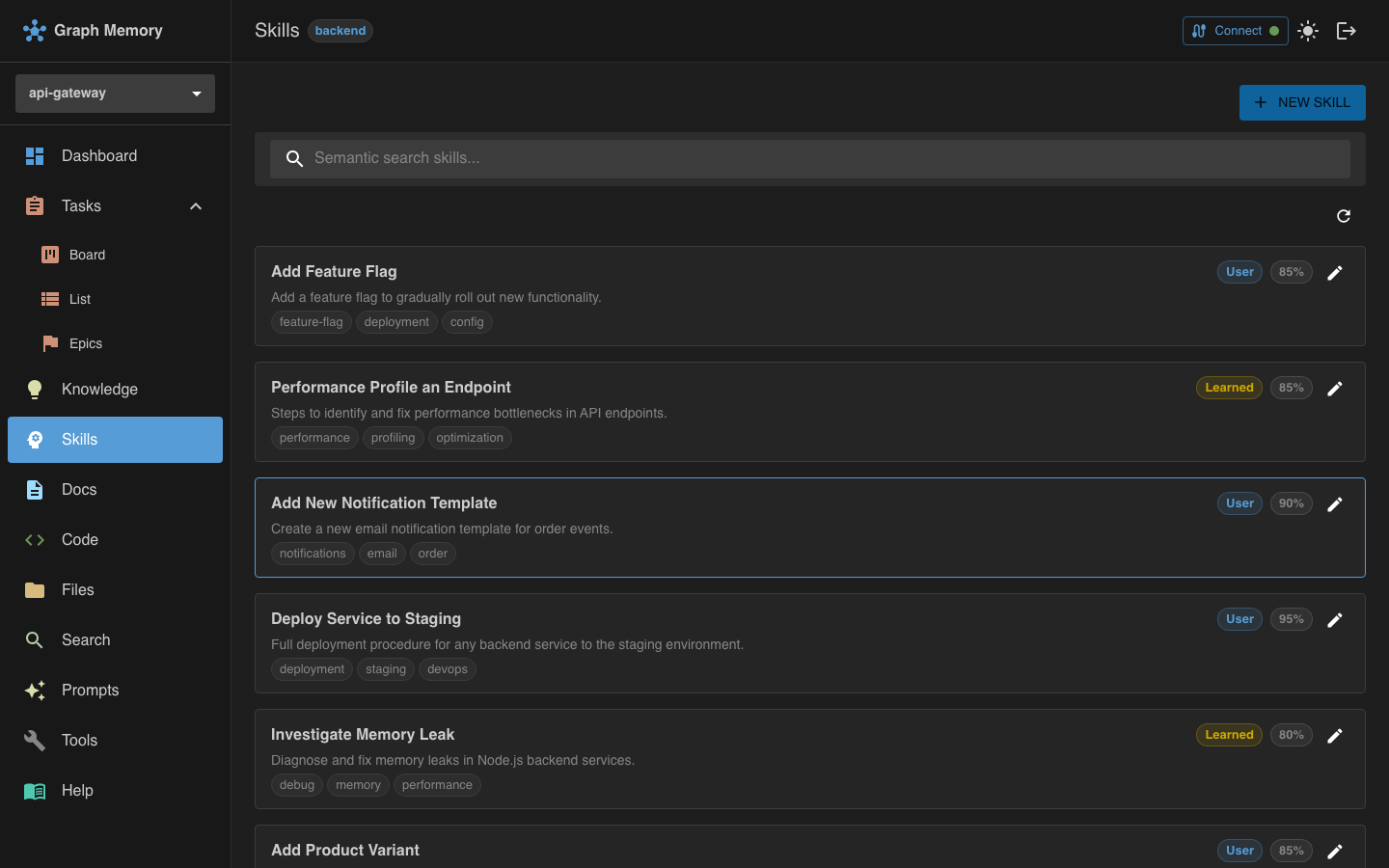
Skill list
The main view shows all skills with filtering by source and tags. Each skill shows its name, description, and usage statistics.
Creating and editing skills
The skill form lets you define:
- Name and description
- Steps -- an ordered list of actions or instructions
- Triggers -- conditions or phrases that activate the skill
- Tags for organization
Usage tracking
Each skill tracks how many times it has been used and when it was last invoked. This helps you identify which skills are valuable and which might need updating.
Trigger display
The skill detail view shows all configured triggers, making it clear what activates each skill.
Cross-graph linking
All three pages support cross-graph links. A note can reference a task, a task can link to a code symbol, and a skill can point to relevant documentation. These links create a connected knowledge web that your AI assistant can traverse when answering questions or performing tasks.
Cross-graph links appear as proxy nodes prefixed with the source graph name (e.g., @docs::, @code::, @tasks::, @knowledge::, @files::, @skills::). These links are navigable from detail pages such as the Code symbol detail view.
Read-only access
If your user account has read-only access to a graph, the UI adapts:
- Create, edit, and delete buttons are hidden
- Drag-and-drop is disabled on the kanban board
- You can still search, browse, and view all data
See Access Control for details on configuring permissions.